Legacy Theme Mode lets you use Customer Photo Uploader galleries and Instagram Feed on older Shopify themes that don't support Online Store 2.0 (OS 2.0) features like app blocks. Instead, you place the content with a simple code snippet and control it with app embeds.
Enable Legacy Theme Mode
Go to the Settings page in the app and open the Legacy Theme Mode tab.
Enable Legacy Theme Mode turns on compatibility for older themes:
- On — standard app blocks are disabled, and global app embeds are activated. You place galleries and feeds manually with a code snippet.
- Off — the app works in standard OS 2.0 mode with app blocks.
Important: if you enable this mode on an OS 2.0 theme that already has active app blocks (Product Gallery, Custom Gallery, or Instagram Feed), those blocks disappear from your storefront. A confirmation window appears to prevent accidental activation.
Set up galleries on a legacy theme
Setup on a legacy theme has three steps: add a code snippet, enable app embeds, and map templates to your galleries and feeds.
Step 1: Add the code snippet
Add an HTML tag to your theme code or page content to tell the app where to display your gallery or feed:
- Product and Custom Galleries:
<div id="gwa-cpu-gallery"></div> - Instagram Feed:
<div id="gwa-cpu-instafeed"></div>
Insert the tag exactly where you want the content to appear — in your Liquid files (for example, index.liquid or product.liquid) or in a Custom HTML block in the page editor.
Step 2: Enable app embeds
Unlike app blocks that you drag and drop, Legacy Theme Mode uses global switches. In the Shopify theme editor, open App embeds and enable:
- CPU - Product Gallery — controls settings for all galleries on product pages.
- CPU - Custom Gallery — controls settings for all other galleries, such as on the Home or About Us page.
- CPU - Instagram Feed — controls settings for all Instagram feeds placed in Legacy Theme Mode.
If you've already added the code snippet to your theme, you'll see a preview of the block in the theme editor on the corresponding page right away.
Step 3: Scan the theme and map templates
Once the code is in place, link your theme templates to specific galleries and feeds.
Scan Theme searches your .liquid files for the gallery and Instagram Feed tags. When it finds them, the app creates the connection automatically — for example, linking your Home page template to your Home gallery or to your first Instagram feed.
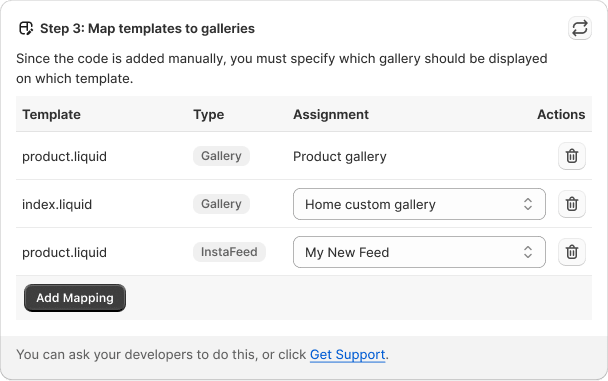
Manage Mappings is a table of all active connections between your theme templates and Customer Photo Uploader content. Each mapping has a Type (Gallery or InstaFeed) and an Assignment — the gallery or Instagram feed shown in that template.
- Automatic mappings — connections found by Scan Theme.
- Manual mappings — if you added the code in a Custom HTML block in the Shopify admin, or the scan missed it, click Add Mapping and select the template, the type, and the gallery or feed.
Block settings
Because app embeds work as global switches, the settings you configure in the theme editor (layout, colors, texts) apply to all galleries or feeds of that type across your store:
- Product Gallery settings — apply to the gallery of the product being viewed.
- Custom Gallery settings — apply to the galleries mapped to non-product templates.
- Instagram Feed settings — apply to the Instagram feeds mapped to your templates.
Legacy Theme Mode FAQ