Setting up Customer Photo Uploader in your Shopify store takes two steps:
- Add the app block to your Shopify theme.
- Upload your first photos.
Step 1: Add the app block to your Shopify theme
To get started, adding one gallery — either a Product Gallery or a Custom Gallery — is enough. You can also add both to compare how each gallery type works in your store.
Add the Product Gallery block
- In the app, make sure the Product Gallery option is selected.
- Click Add Your First Gallery.
- You'll be redirected to the Shopify theme editor. In the default product template, the Product Gallery block is added to the Apps section.
- Save the changes in your theme.
While you're in the theme editor, you can click the block to open its configuration options. You can come back to adjust the gallery appearance at any time. Learn more about configuring Product Galleries.
Add the Custom Gallery block
- In the app, select the Custom Gallery option.
- Click Add Your First Gallery.
- You'll be redirected to the Shopify theme editor. On the Home page, the Custom Gallery block is added to the Apps section.
- Optionally, remove the block from the Home page and add it to any other page of your store.
- Save the changes in your theme.
While you're in the theme editor, you can click the block to open its configuration options. You can come back to adjust the gallery appearance at any time. Learn more about configuring Custom Galleries.
That's it for step 1. Go back to the Customer Photo Uploader dashboard and refresh the Theme App Block Status — one or both of your galleries will show as active.
Step 2: Upload your first photos
Once the app block is enabled in your theme, upload your first photo:
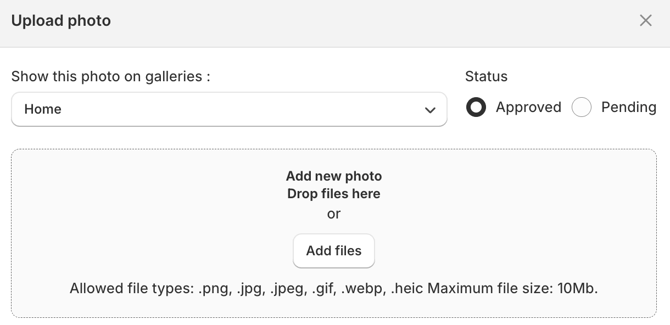
- Click Upload New Photo.
- In the dialog, choose the gallery you want to add the photo to.
- Set the photo status:
- Approved — the photo is displayed on your Shopify store right away.
- Pending — the photo is under review; you can change its status to Approved or Rejected later.
- Select a photo from your device and upload it.
Once your first photo is uploaded, setup is complete. To fine-tune your galleries, use the Shopify theme editor and the other pages of the Customer Photo Uploader app.