Page overview
On the Product Galleries page, you can:
- Check the Theme App Block Status.
- Search the product list with the search bar.
- Sort products in ascending or descending order by name or photo status.
- See the number of Pending, Approved, and Rejected photos for each product.
- Preview a Product Gallery on your online store.


Theme App Block Status
This section shows whether Product Galleries are enabled or disabled in your theme. If they're enabled, you can see which templates they're added to.

To add the gallery to more templates, use Add to another template and select a template from the drop-down list.

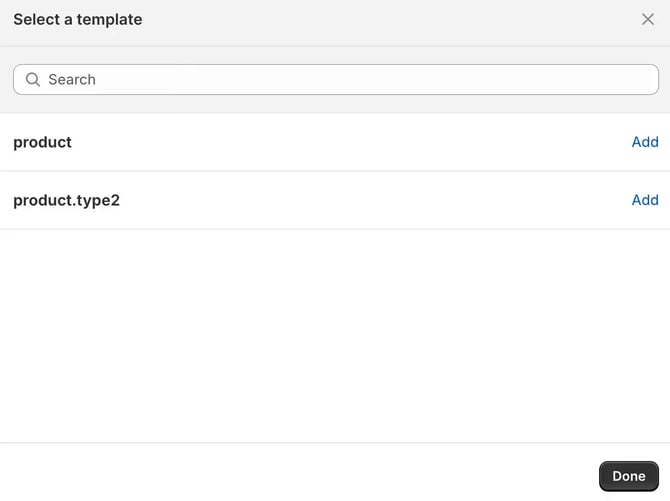
Editing a Product Gallery
To edit a Product Gallery, click the product in the list.

The product's gallery page opens with advanced options.
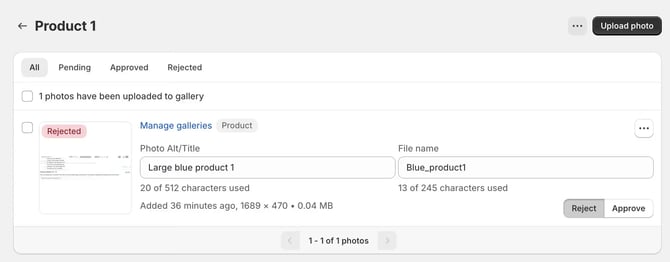
Here you can review the photos in this Product Gallery by status:
- All
- Pending
- Approved
- Rejected
Sort photos in the gallery
To change the order of photos in this gallery, click the sorting icon in the top-right corner of the photo list.

Then choose a sorting option:
- Newest first — the most recently added photos appear first.
- Oldest first — the earliest added photos appear first.
- Manual — arrange the photos in your own order.
- Global — uses the default sort order from the Settings page, Content Moderation tab. The current global value is shown in brackets, for example "Global (newest)".
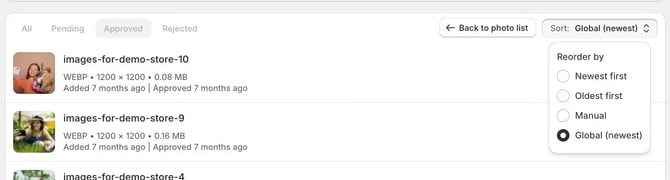
The selected order also defines how approved photos appear in this gallery on your store.
Upload photos to a Product Gallery
The Upload photo button works the same way as on the Photos page. Learn more about uploading photos. On the Product Galleries page, there are a few differences:
- Photos you upload here are added only to this Product Gallery.
- You can also add photos already uploaded to Customer Photo Uploader with the Choose from existing button.
- You can open this product's page in your Shopify admin or on your store with the respective buttons.
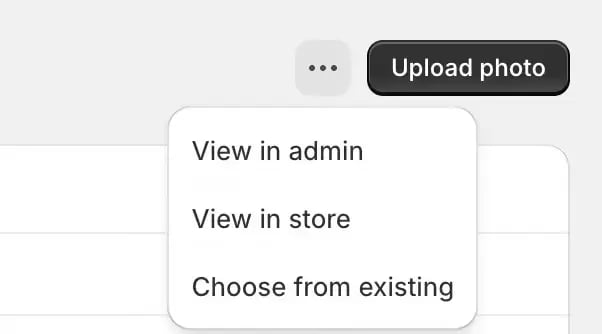
To add a photo from one Product Gallery to another product, use Choose from existing in the second product's gallery, or Manage galleries on the Photos page.
Change the photo status
A photo can be Processing, Pending, Rejected, or Approved. Learn more about photo statuses and how to change them.
Assign a photo to a gallery
Use Manage galleries to assign a photo to any of your Custom or Product Galleries. After you select galleries in each field, you'll see:
- In the top-left corner — the pages where the photo will be shown.
- Under the Product Galleries field — the products on whose pages the photo will appear.
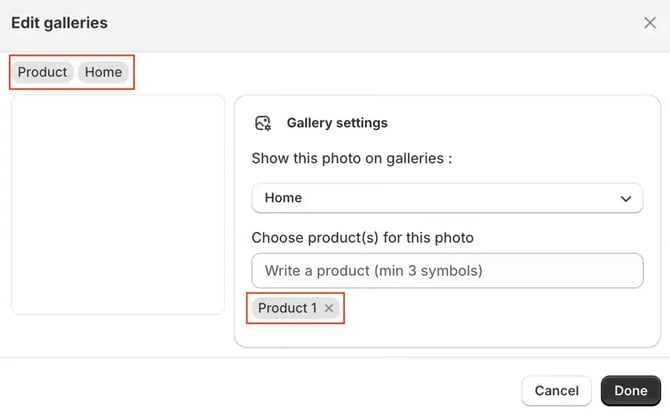
The number of Custom and Product Galleries you can assign to a photo depends on your Customer Photo Uploader plan.
Other photo actions
On a product's gallery page, you can also edit image SEO data, link products to a photo (Shoppable), manage the photo description and customer email, delete a photo, and view it in Shopify Files. These actions work the same way as on the Photos page — learn more about managing photos.
Remove a photo from a Product Gallery
On a Product Gallery page, you can remove a photo from this gallery without deleting it from the app. You can add it to another Product or Custom Gallery later on the Photos page.

Product Galleries FAQ