The Notification Settings section lets you manage all email notifications sent by Customer Photo Uploader: who receives them, which updates are sent, and how often.
Email data
Email address for notifications — the address where all app notifications are sent. By default, it's the store owner's email. You can replace it with any address, for example your team's shared inbox or a specific manager's email, and change it at any time.

System notifications
System notifications keep you informed about Customer Photo Uploader updates, such as new feature announcements, additional assistance, and important service alerts.
Enable system notifications:
- On — you receive all system updates by email.
- Off — you stop receiving app-wide notifications and may miss news or important updates about the app's performance.
We recommend keeping this setting on so your team stays informed about product changes and improvements.

Summary notifications
Available on the Grow plan. Summary notifications send regular reports about your galleries' activity and customer photo uploads.
Uploaded photos notifications
When enabled, you receive an email summary with the total number of uploaded photos for Product and Custom Galleries. It helps you track customer activity, engagement trends, and gallery performance over time.
Choose how often to receive these emails:
- Daily — a quick update every day.
- Weekly — a summary once a week.
- Monthly — a report at the end of each month.

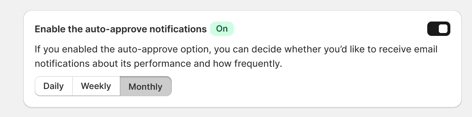
Auto-approve notifications
If your store uses auto-approve, which automatically approves uploaded photos, these email summaries help you track how it works. Choose how often to receive them: Daily, Weekly, or Monthly.
This setting appears only after you enable auto-approve on the Content Moderation tab.