On the Content Moderation tab, you control how customer photos are handled — published automatically or held for manual review — and set up upload data, Shoppable, and photo sorting options.
Manual photo moderation is available on every Customer Photo Uploader plan. Automatic photo approval requires the Grow plan.
Automatic photo approval
Automatic approval publishes photos uploaded by your customers to your galleries right away, saving you time on moderation.
Enable the auto-approval:
- On — all customer photos are published to your store's galleries immediately, skipping moderation.
- Off — all submitted photos are held for manual review. Each photo must be approved before it appears in your public galleries.

After turning on auto-approval, enable the auto-approve summary emails on the Email Notifications tab to track how it works.
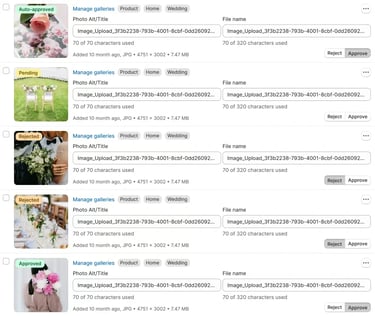
On the Photos page, manually approved photos have the Approved status, and automatically approved photos have the Auto-approved status. Filter by status to quickly find auto-approved photos you may want to double-check.
Upload data settings
This setting lets you see and manage more data about uploaded photos in the app admin: the Description and Email fields your customers fill in when uploading a photo.

Turn the toggle on and save the changes in the top bar. On the Photos and gallery pages, you'll then be able to switch the data view for each photo.

Learn more about working with SEO Data and Upload Data fields.
Shoppable settings
Shoppable settings turn your galleries into a shoppable experience by linking photos to the products shown in them, so customers can buy those products in a few clicks.

Enable Shoppable tab in admin:
- On — a Shoppable tab appears in the photo lists on the Photos, Product Galleries, and Custom Galleries pages. There you can link up to 4 products to each photo using the Shopify product picker.
- Off — the Shoppable tab is hidden in the app admin.
Shoppable is available on all Customer Photo Uploader plans.
Linked products appear in the lightbox on your storefront when a customer opens a photo. By default, the product cards are shown to the right of the photo. You can change their position or turn them off in the gallery widget settings in the theme editor.
Photo sorting order
This setting defines the default order of approved photos in your galleries:
- Newest first — the most recently added photos appear at the beginning of each gallery.
- Oldest first — the earliest added photos appear first.

The selected order applies to all galleries at once. To arrange photos differently in a specific gallery, override the global order on that gallery's page — including Manual mode for your own arrangement.