On the Integration tab, you can see which Shopify apps Customer Photo Uploader connects with to bring more value to your store. The first available integration is Shopify Flow.

Notifications with Shopify Flow
Customer Photo Uploader offers built-in email notifications on the Email Notifications tab of the Settings page. Some of them are available to everyone, while extended summary notifications require the Grow plan.
To help you track your galleries' activity on any plan, you can build your own notification workflows in Shopify Flow.
Build a notification workflow in Shopify Flow
The example below uses one trigger and one condition. Other triggers and conditions are set up the same way — just choose the ones that fit your needs.
Create a workflow and add a trigger
- Install Shopify Flow from the Shopify App Store if it isn't on your store yet.
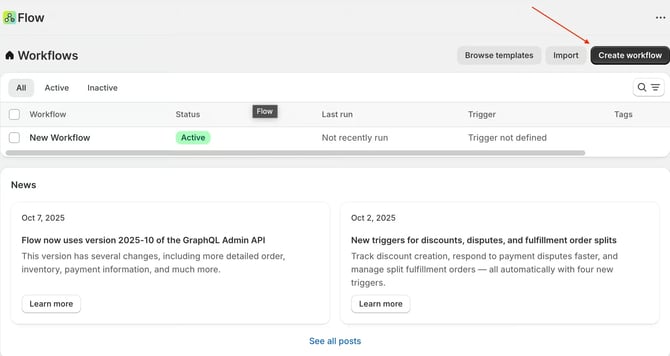
- Open Shopify Flow and click Create workflow.
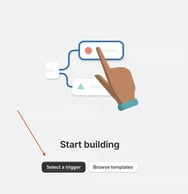
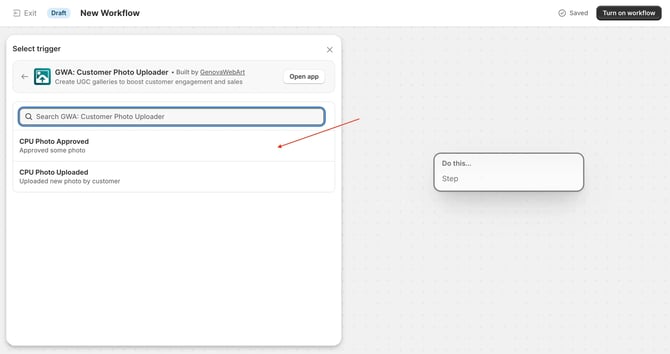
- Click Select a trigger.
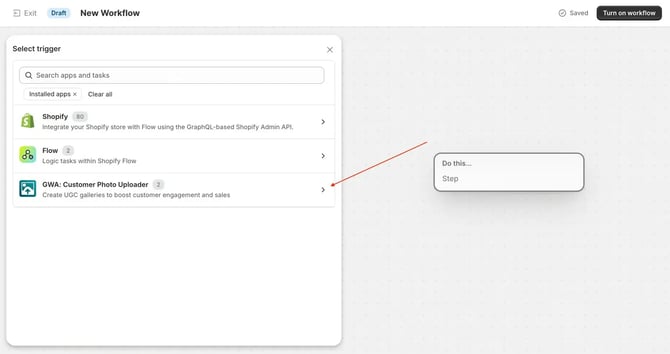
- In the app list on the left, choose GWA: Customer Photo Uploader.
- Choose one of the two available triggers:
- CPU Photo Approved — runs the workflow every time a photo is approved in the app.
- CPU Photo Uploaded — runs the workflow every time a photo is uploaded to a gallery.
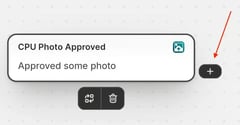
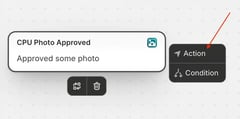
- Click the + icon next to the trigger block to add a condition or an action.
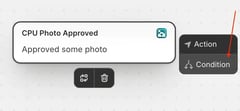
Add a condition
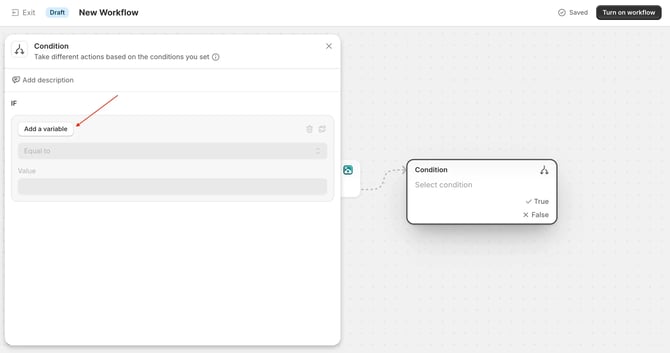
- If your workflow needs a condition, click Add a variable and choose it from the list.
- Choose a variable, for example
customerEmail.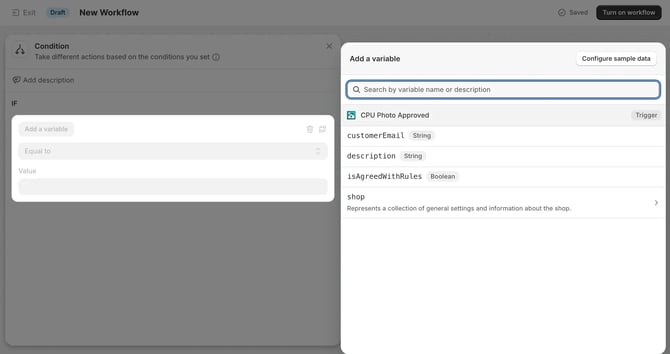
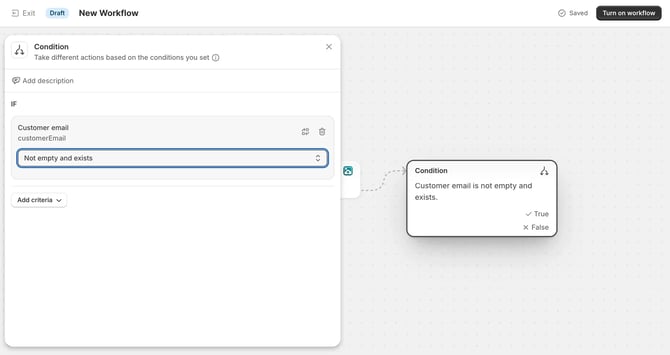
- Set up the condition. For example, to get notified only about approved photos submitted with an email address.
Add an email action and turn on the workflow
- Click the + icon next to the condition block to add an action.
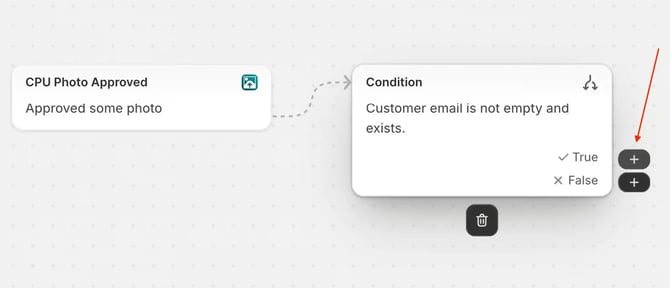
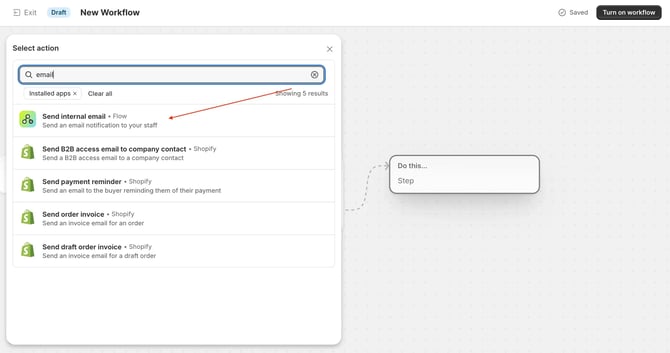
- Type "email" in the search field and select Send internal email.
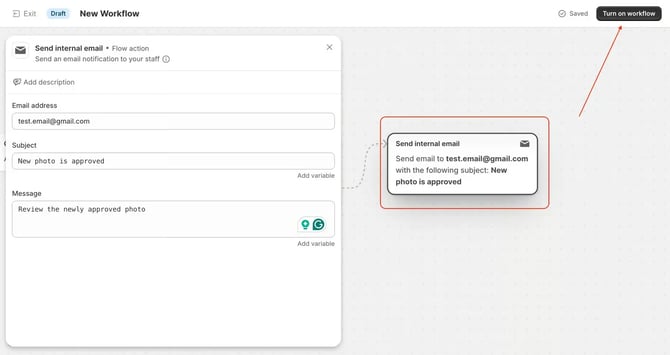
- Fill in all required fields.
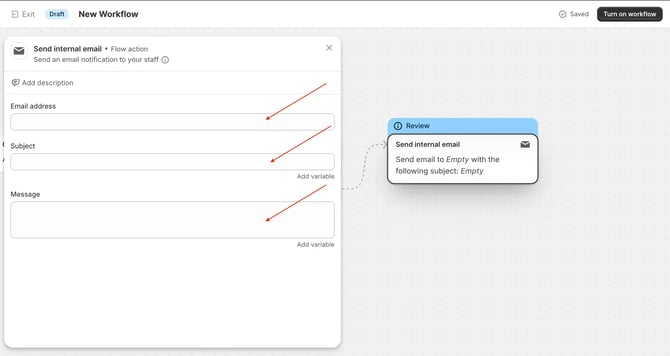
- Review the workflow and turn it on.