Upload Photo
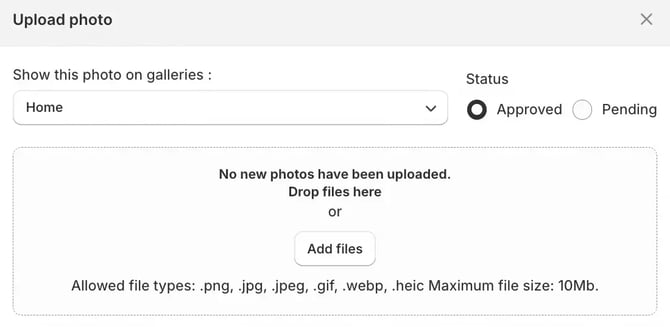
Click Upload Photo to add images to your Custom Galleries, including photos your customers share on social media or other sales platforms. While uploading, you can:
- Choose the gallery the photo will be added to.
- Set the photo status — Approved or Pending.
After you upload photos, a window in the bottom-right corner of the screen shows the upload status of each photo:
- Uploading — the upload is still in progress.
- Uploaded — the photo was added successfully.
- Failed — the file size or format isn't supported, so the photo wasn't added.
Photo views by status
Photos on the page are grouped into views by status for easier navigation:
- All
- Pending
- Approved
- Rejected
Editing photos
Once a photo is added to Customer Photo Uploader — by you or by a customer — you can edit and manage it in several ways.
Change the photo status
A photo can have one of the following statuses:
- Processing — the photo is being uploaded to the app. This status is set automatically and is temporary.
- Pending — the photo needs review and isn't visible on your store until you approve or reject it. This status can be set by you during upload or applies automatically when a customer adds a photo.
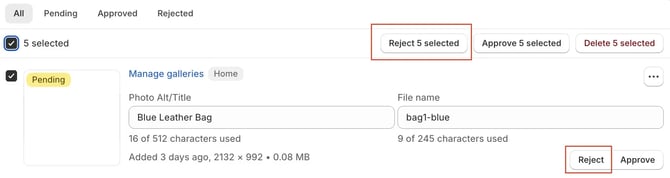
- Rejected — the photo won't be displayed on your store. To reject a photo, click Reject next to it, or reject several photos at once with bulk editing.
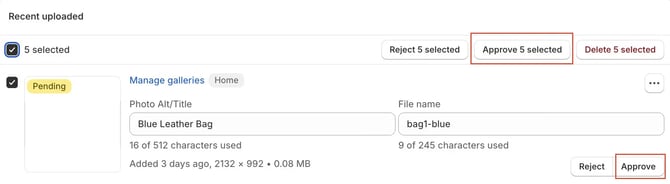
- Approved — the photo appears in its assigned gallery or on the product page of your store. To approve a photo, click Approve next to it, or approve several photos at once with bulk editing.
Assign a photo to a gallery
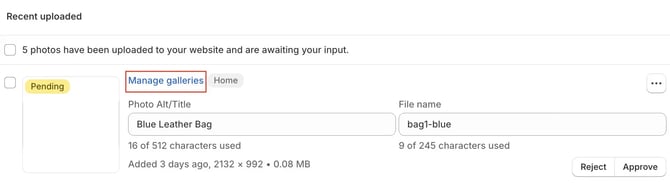
To add an uploaded photo to a specific Custom or Product Gallery, click Manage galleries.
The window that opens has two fields:
- Custom Galleries — choose the Custom Galleries the photo will appear in. Selected galleries are shown in the top-left corner.
- Product Galleries — choose the Product Galleries for the photo.
The number of Custom and Product Galleries you can assign to a photo depends on your Customer Photo Uploader plan.
Edit image SEO data
You can change the Photo Alt/Title and the File name of an uploaded photo by editing these fields in the photo's row.

We recommend describing the image in the Photo Alt/Title field to improve your SEO.
Link products to a photo (Shoppable)
The Shoppable view lets you link your store's products to photos and turn your galleries into a shoppable experience.
To link products, switch the data view above the photo list to Shoppable and click Link products next to a photo. In the Shopify product picker, you can choose up to 4 products per photo.
Linked products appear next to the photo as cards with a counter (for example, 1/4). To remove a product, click the × on its card. To add more, click Link products again.
On your storefront, linked products appear in the lightbox when a customer opens the photo, each with a View Product button that leads to the product page. You can set the position of the product cards in the gallery widget settings in the theme editor.
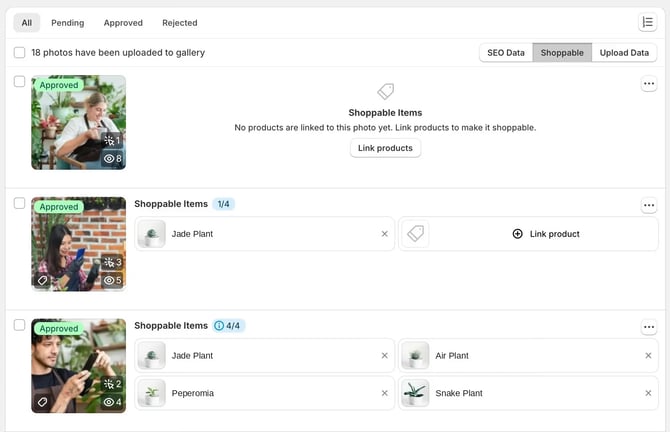
You can show or hide the Shoppable view in the app on the Settings page, Content Moderation tab.
Manage the photo description and customer email
When the Upload data settings toggle is on (Settings page, Content Moderation tab), you can switch the data view for each photo. Upload Data shows the Description and Email fields — empty or filled in by your customer.
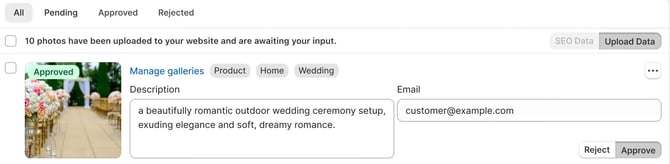
You can always edit a photo's description or add your own text to match your brand.
You can also use customers' emails for marketing campaigns and to encourage repeat purchases. To set this up with Shopify Flow, see the integration settings or contact us at support@customer-photo-uploader.app.
To show photo descriptions to customers in the gallery on your store, turn on Show photo description in the gallery widget layout settings.
Delete a photo
You can delete photos in two ways:
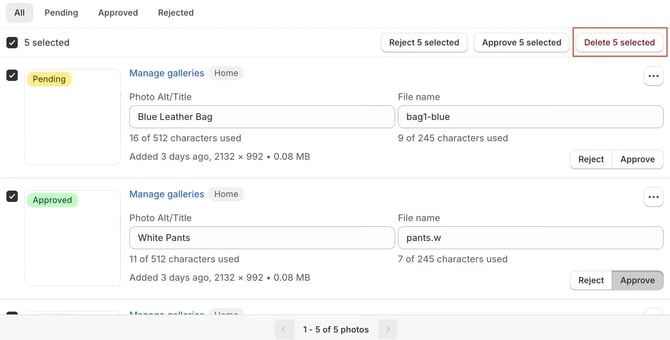
- Several photos at once — select them with the checkboxes and use bulk editing.
- One photo — open the … menu next to the photo.

View photos in Shopify Files
Approved photos are also available in Files in your Shopify admin.
If you edit an image directly in Shopify Files, the changes appear on your store but not in Customer Photo Uploader — the app keeps showing the original version.
